

How to Put a Project on Hold in OnePlan
Projects don’t always move forward as planned. Budget changes, shifting priorities, resource constraints, or external dependencies can all cause work to pause. Instead of closing a project that may resume later, OnePlan allows you to place it On Hold, preserving all project data while clearly communicating its status.
Why Use an On Hold Status?
An On Hold status helps organizations:
- Maintain visibility into paused initiatives.
- Improve reporting by distinguishing active and inactive projects.
- Preserve project history, schedules, and documentation.
- Keep stakeholders informed.
- Enable quick project reactivation when priorities change.
How to Put a Project on Hold
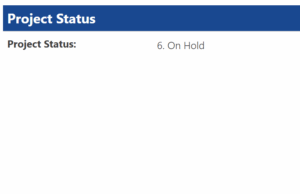
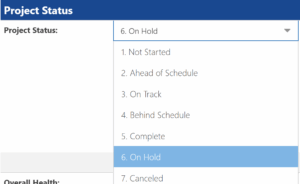
To update a project’s status:
- Open the project or plan.
- Navigate to the Details Page.
- Locate the Status field.
- Select On Hold (or your organization’s equivalent status).
- Save your changes.
Note: If you don’t see a Status field, your OnePlan administrator may need to add it to the project layout.
What Happens Next?
When a project is marked On Hold:
- Project data remains intact.
- Schedules, tasks, and documents are preserved.
- The project can still appear in portfolio reports and dashboards.
- Team members can easily identify that work is temporarily paused.
Best Practices
To manage on-hold projects effectively:
- Document the reason for the pause.
- Review resource assignments and reallocate as needed.
- Communicate status changes to key stakeholders.
- Use portfolio filters to separate active and on-hold projects.
Better Portfolio Visibility
Using an On Hold status provides greater transparency and governance than leaving a project inactive. It helps organizations maintain accurate reporting, protect historical data, and stay ready to restart work when the time is right.
Need help optimizing OnePlan for your PMO? Contact PPM Works to learn how we can help you improve project visibility, governance, and portfolio management.