
Understanding the OnePlan OData Feed: A Practical Guide to the Table Dictionary
If you’re building reports, dashboards, or custom integrations on top of OnePlan, sooner or later you’ll end up staring at the OData feed wondering, “Which table has the field I need, and how does it connect to everything else?”
OnePlan publishes a Table Dictionary that answers exactly that question. This post walks through what’s in the feed, how the tables relate to one another, and a few things worth knowing before you start building your first report.
Why the OData Feed Matters
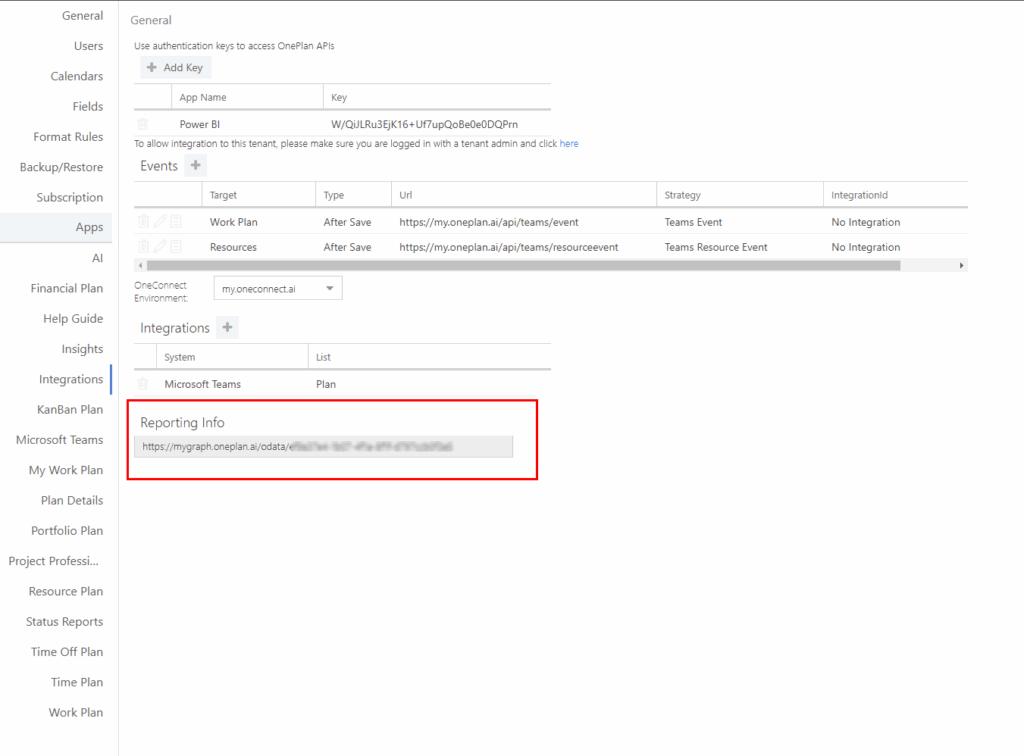
OnePlan’s OData feed is the backbone for any custom reporting built outside of OnePlan’s native views, think Power BI, Excel, or other BI tools your PMO already relies on. Rather than exporting data by hand, you can connect directly to the feed and pull structured, relational data on plans, tasks, resources, timesheets, financials, and more.
The feed is split into two categories:
- Stable tables – always present, regardless of how your OnePlan environment is configured
- Variable tables – created dynamically based on your organization’s Plan Type configuration (more on this below)
The Stable Tables
These are the tables you can count on in every OnePlan environment. A few of the most important ones:
Plans is the center of the data model – described in OnePlan’s own documentation as “the main and most important data table in the OData feed.” It holds every plan of every Plan Type in your environment, and it’s where most of your report-building will start.
Tasks holds every work item in your environment – tasks, issues, risks, changes, and any custom work item types you’ve created all roll up into this single table.
Resources contains your resource data – names, roles, departments, rates, and availability windows.
Timesheets holds timesheet entries, and generally needs to be joined back to Plans, Tasks, and Resources to be useful in a report.
Costs contains financial plan data from the Financial Planner, with a row per cost category or detail line, typically joined back to Plans.
ResPlan and ResPlanLog cover resource planning – ResPlan holds the resource plan lines themselves, while ResPlanLog captures the approval/rejection history when resource negotiation is turned on.
Capacity tracks resource availability by day or month, joining to both the Resources table and a Date Dimension.
StatusReports is essentially a snapshot table – it captures a plan’s plan-level data at the moment a status report is generated, which makes it useful for trend reporting over time.
Other stable tables include Activities, Assignments, Association (which maps the lookup relationships between different plan types – programs to objectives, projects to epics, and so on), EnterpriseTeams and Enterprise Team Members, ModelerModel and ModelerScenario (for Portfolio Modeler data), PlanDependency, PlanInsights, Plan Process Steps, Process Steps, Teams, and TimeOff.
The Variable Tables: Plan_[PlanType]
Here’s where things get organization-specific. For every Plan Type you configure in OnePlan – Project, Program, Portfolio, Epic, Idea, Objective, Key Result, and so on — OnePlan generates a corresponding Plan_[PlanType] table in the feed. So you might see Plan_Project, Plan_Program, Plan_Portfolio, Plan_Epic, Plan_Idea, Plan_Objective, Plan_KeyResult, and Plan_Project_Epic, depending on what your environment has configured.
Each of these tables links back to the core Plans table via its Id field, but carries the fields specific to that plan type. Plan_Program, for example, links to Plan_Portfolio through PlanType_EnterpriseProject_Id, reflecting the portfolio-to-program hierarchy. Plan_Project_Epic links to both Plans and Plan_KeyResult, given how epics tie into value delivery tracking.
The practical implication: your OData schema will differ from another organization’s OData schema. If you’re building reports meant to be portable across OnePlan environments, don’t hard-code assumptions about which Plan_ tables exist — check the actual feed for your instance first.
How the Tables Connect
A handful of relationships come up constantly once you start building real reports:
- Capacity → Resources via ResourceID/UserID, and Capacity → Date Dimension via Date
- Costs → Plans via WorkPlanId, and Costs → Date Dimension via Date
- ResPlan → Resources via ResourceId, and ResPlan → Plans via WorkPlanId
- Tasks → Plans via PlanId
- Timesheets → Tasks via TaskId, Timesheets → Resources via UserId, and Timesheets → Date Dimension via EntryDate
- StatusReports → Plans via Report_WorkPlanId
- Plan_[PlanType] tables → Plans via Id
If you keep these join paths in mind, most standard PMO reports – resource utilization, financial rollups, timesheet compliance, plan health – become straightforward to build.
A Few Practical Notes
- Start with Plans. Nearly every report benefits from joining back to this table, since it’s where core plan attributes, health indicators, and cross-plan associations live.
- Watch for approval-status codes. Fields like TimeApproved and PlanApproved in the Timesheets table use numeric codes (0 = not approved/rejected, 10 = approved, 20 = rejected) rather than plain text — build that logic into your report rather than assuming a readable string.
- Snapshot tables aren’t real-time. StatusReports reflects data as of when a status report was generated, not current-state data – useful for trend analysis, but don’t substitute it for live plan data.
- Expect schema drift across environments. Because Plan_ tables are generated from your organization’s configured Plan Types, any report or template you build should be validated against your specific feed rather than assumed to match another client’s setup.
Getting the Most Out of the OData Feed

The OnePlan OData feed gives you a genuinely relational, well-documented path into your PPM data — but as with any data model, the value comes from understanding how the pieces fit together before you start building. Whether you’re standing up your first Power BI dashboard or auditing an existing one, starting with the Plans table, mapping your join paths, and confirming which variable tables exist in your environment will save you a lot of trial and error.
If your team is working through OnePlan reporting, data modeling, or broader PPM implementation questions, PPM Works can help you make sense of it.